How to re-arrange panels
Except the top ribbon menu, all areas and panels can both be split and rearranged to better suit your needs. Your choosen setup can also be stored so Kentucky remembers it next time you start Kentucky.
-
Hold your mouse over the edge of the panel you want to change.
-
When you see a little cross click and hold the left-click button down, while you move the mouse to there you want the edge to be (the panel edge should follow).
-
Release the mouse left-button again and the panel should stay there you moved it.
-
Hold your mouse over the panel title, for example "Assigned to Me".
-
Click and hold the left-click button down.
-
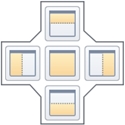
While you move the mouse around over each area, above docking symbol should show. Move the mouse to it and hold over center or one of the ends. The background change to blue in the part you select.
-
Release the mouse button and your panel moves to there the blue background is.
-
If you changed your mind or misplaced a panel, you can either move it again or select "Reset layout". To do this go to

 note
noteIf you already saved your layout before you should instead do the following, go to :
-
Go to